One delivery is a good place to start.
Help & SupportSet up your workspace, receive one item, then find it in inventory. You can bring your existing order list and the rest of your team in afterward.
Your first workspace
- Create your account. Use your own email and choose a password. Open the confirmation email to verify your address.
- Set your name. Your public name is what teammates see. Your optional private greeting name is visible only to you.
- Receive one delivery. Open Receive, review the label details, enter the quantity and location, and save.
- Find your item. Open Inventory and search its name or catalog number. Open the item to see its stock and location.
- Invite your team. An owner or administrator can send invitations from Settings. Each teammate should open their own invitation email.
Already have an order list? Import an Excel workbook and review the preview before saving it.
Receive, review, save
Start with Take photo or Upload photo, then review the extracted details and suggested matches. You can enter the details manually. If no label photo is attached, confirm Save without photo or choose Take photo; a catalog thumbnail does not count as delivery evidence. Check the physical delivery before saving.
Receiving something you already stock?
Select the matching inventory item when it is suggested. Check the catalog number and manufacturer, especially when names look similar. Select its actual stock unit, enter this delivery’s quantity and lot, and confirm the destination. Previous placement is a suggestion. A repeat receipt keeps the inventory home location and records the delivery’s confirmed location separately. Its receipt history preserves all recorded lot numbers.
Check the new expiration date for every delivery. If old and new stock have different expiration dates, use the receipt history to distinguish them and follow your lab’s stock-rotation procedure.
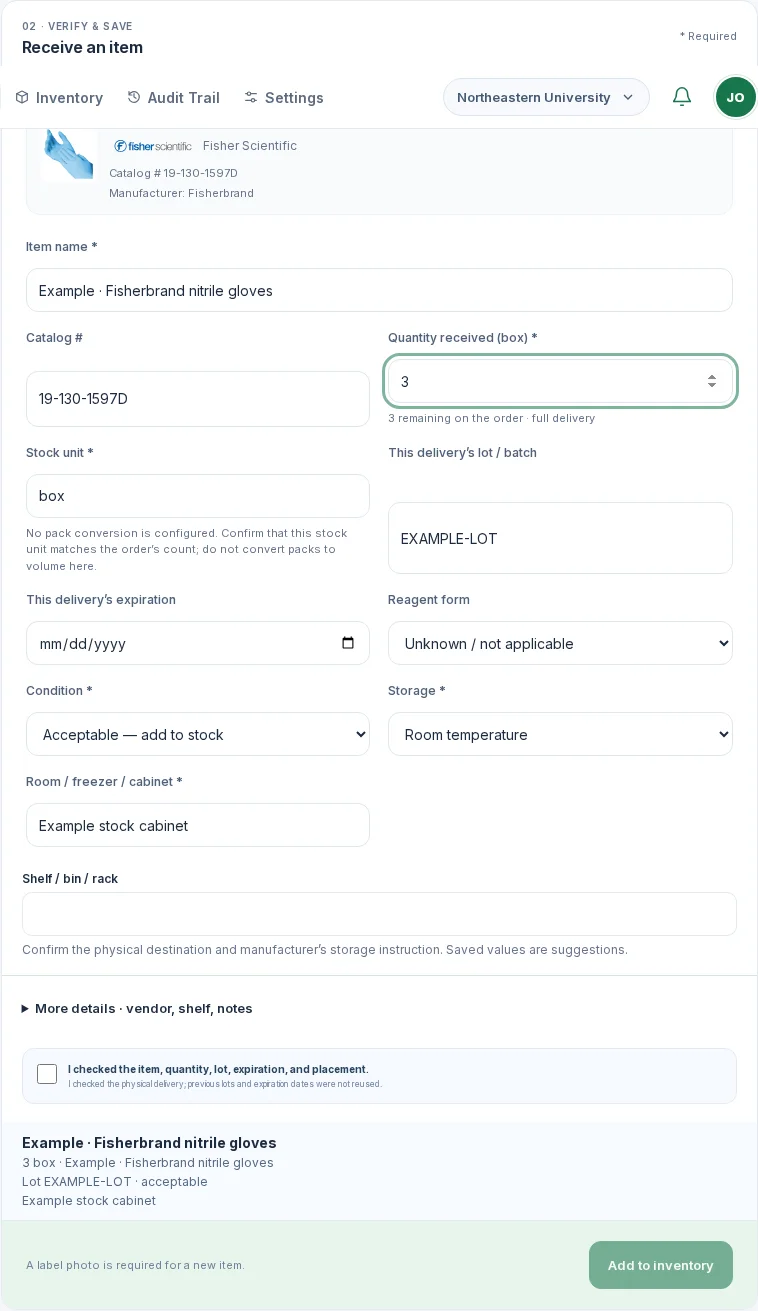
All delivery details in one form
Quantity, stock unit, condition, storage, and destination appear in the main form. No pack-to-volume conversion is assumed. Select an Ordered or Partially received order from search results, or use Direct receipt. Receiving against an unplaced request requires an explicit exception confirmation. A damaged, quarantined, or temperature-excursion delivery stays out of usable stock and does not fulfill its order.
Product type is Consumables, Reagents, or Lab supplies. Previously recorded physical states are preserved. Received count, purchasing unit, pack contents, and stock unit remain distinct: a case of ten does not automatically multiply stock. Review any exact-catalog packaging suggestion before using it.
Keep stock useful to everyone
Search by item name, catalog number, manufacturer, or storage location. Click a row or its photo, or focus the row and press Enter, to open details. Add item records opening stock directly, without creating an order or receipt. Start with a label photo or enter the fields manually, then review before saving.
Need more? Select the reorder option in the item details and enter the quantity you want. The workspace owner and administrators receive a notification. A request does not automatically place an order with a vendor.
Ask an administrator to correct product details or investigate stock discrepancies. Your team’s access controls still apply.
Import orders, export your workspace
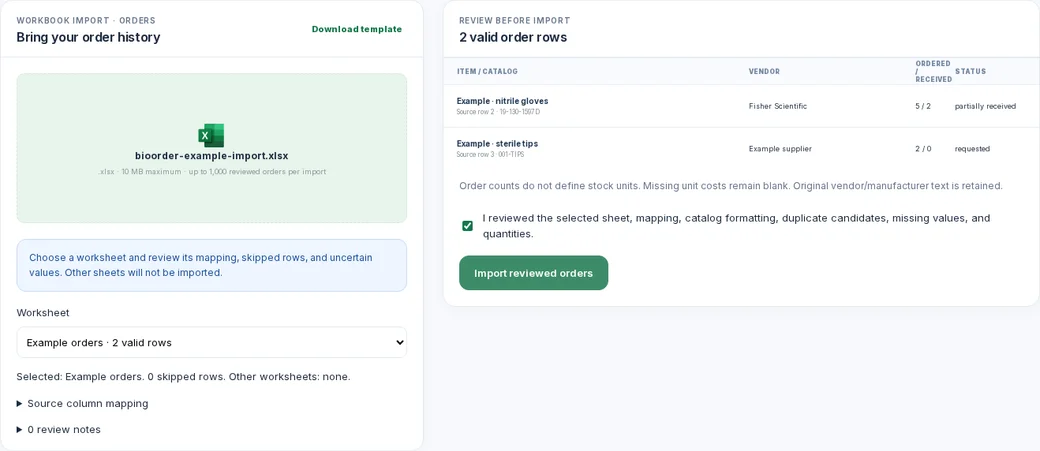
- Open Data import/export. Importing is available to owners/admins.
- Choose an .xlsx workbook up to 10 MB and select a worksheet. Review column mapping, skipped rows, numeric catalog formatting, duplicate source candidates, and missing values.
- Confirm the preview before importing up to 1,000 order rows. Original supplier/manufacturer text is preserved; a Received flag never reconstructs a numeric received count. Import does not create inventory.
- Use Export all orders and Export all inventory in Settings → Data import/export for complete timestamped Excel files, including archived records. These two exports do not contain admin audit history. Use Inventory’s Export inventory menu for the current filtered active view or all inventory including archived items. CSV contains protected photo references, not binary images.
- Download workspace Excel for stable IDs and relationships across orders, inventory, receipts and lots, locations, stock activity, stock requests, import batches, and attachment references. Admin history is included only for owners/admins. This is a portable data export, not an automatic full restore or backup of original files.
Use, move, or report stock
- Open an item by clicking its row or focusing the row and pressing Enter. Use stock and Move stock keep the existing recorded unit; equipment suggestions must be reviewed before treating an asset as a consumable.
- If the count is wrong, select Report discrepancy and enter the observed quantity and a clear note. A request alone does not correct stock.
- An owner/admin reviews the request and makes a stock correction. Audit Trail describes this as an adjustment, not consumption. Mark the request resolved after checking the result.
Reorder flags include quantities at the threshold. Stock/expiry flags assess recorded quantities and dates; they do not certify scientific suitability. An item expiry is not a remaining-lot balance.
Keep spreadsheet changes predictable
BioOrder → Google Sheets. Make record changes in BioOrder. Connected spreadsheet tabs receive those updates; edits made in the spreadsheet do not update BioOrder.
- Open Settings and connect the Google account that can edit your spreadsheet.
- Choose the destination spreadsheet and review the tabs BioOrder will manage. Use dedicated tabs, keeping your own formulas and notes outside those tabs.
- Review the connection status and last successful sync in Settings. Retry if a connection needs attention.
BioOrder replaces values in Orders A–P and Inventory A–R, up to 10,000 rows per managed tab. Keep custom columns outside those ranges. Before updates, a recovery copy of the managed ranges is saved. In Settings → Integrations, open Managed columns, recovery copies & retry; download the recovery copy if needed and retry pending sync after checking permissions. Do not reconnect to a customer workbook merely to test it.
Saving an inventory item and syncing a spreadsheet are separate steps. If a sync fails, check the saved item in BioOrder before retrying; do not receive the delivery a second time.
Excel file import and export do not require a Microsoft account. When Microsoft 365 connection credentials are configured, an owner/admin can connect a work or school account, select a cloud workbook and worksheet or table, map the managed columns, and review the preview before consenting to writes. Unmapped columns and unrelated formulas are preserved. Check Settings for the actual connection status.
Your trial and subscription
A standard workspace starts with a 14-day trial without a credit card. The workspace owner can open Billing to choose a plan or manage an existing subscription.
Have a pilot code? After creating your workspace, enter it in Billing’s pilot-code section. Check the confirmation and the trial end date shown there.
Paid subscriptions renew monthly until cancelled. Review the checkout total before paying. Payment details, invoices, and cancellation are managed through the secure billing portal.
Get back to work
I did not receive a confirmation or invitation email.
Check the spelling of your email, then check spam and your organization’s quarantine folder. Use the resend option on the confirmation page, or ask your workspace administrator to resend your invitation from Settings. Use the most recent email link.
The confirmation or invitation link expired.
Request a new confirmation email or invitation. Open the newest link in the browser you intend to use for BioOrder.
I cannot use the live camera.
Allow camera access in your browser. You can also take a photo with your phone’s camera and select that image in Receiving. You can also enter details manually and confirm Save without photo when the warning appears. The warning offers Take photo if you want to attach one first.
A label field is missing or incorrect.
Retake the photo with the label in focus and without glare, or enter the field manually. Review the actual package before saving. A blank value is preferable to a guessed catalog number or expiration date. Handwritten dates without context are kept as Label date; initials remain literal text. A concentration such as 70% is not a quantity.
I am not sure a delivery saved.
Check Inventory for the catalog number and look at the item’s recent receipts before trying again. If an error appears, keep its exact wording and the time it occurred for troubleshooting.
I need to change my profile or log out.
Click your initials circle at the top of your workspace. You can edit your public name, private greeting name, and theme, or choose Log out.